Quick Start Part 2: Agentic Flows in 5 Minutes
Build an event-driven workflow that uses your protected tools with an AI agent.
Prerequisites
Complete Part 1: Safety Layer first to set up your account, policies, and protected tools.
What You'll Accomplish
- Configure an AI model for your flows
- Create an automated payment processing flow
- Trigger the flow and see the approval workflow in action
- Learn how to trigger flows via webhooks
Step 1: Create Your AI Model (1 minute)
Flows need an AI model to execute tasks. Let's add one.
- Navigate to Flows in the left sidebar
- Click + Create Flow
- Click Create from Scratch (skip presets for now)
- In the AI Agent section, you'll see "No AI models configured yet"
- Click + Add AI Model
-
Fill in:
- Name:
GPT-5.4 - Provider:
OpenAI - Model: Select a model from the dropdown
- API Key: Your OpenAI API key
- Name:
-
Click Create
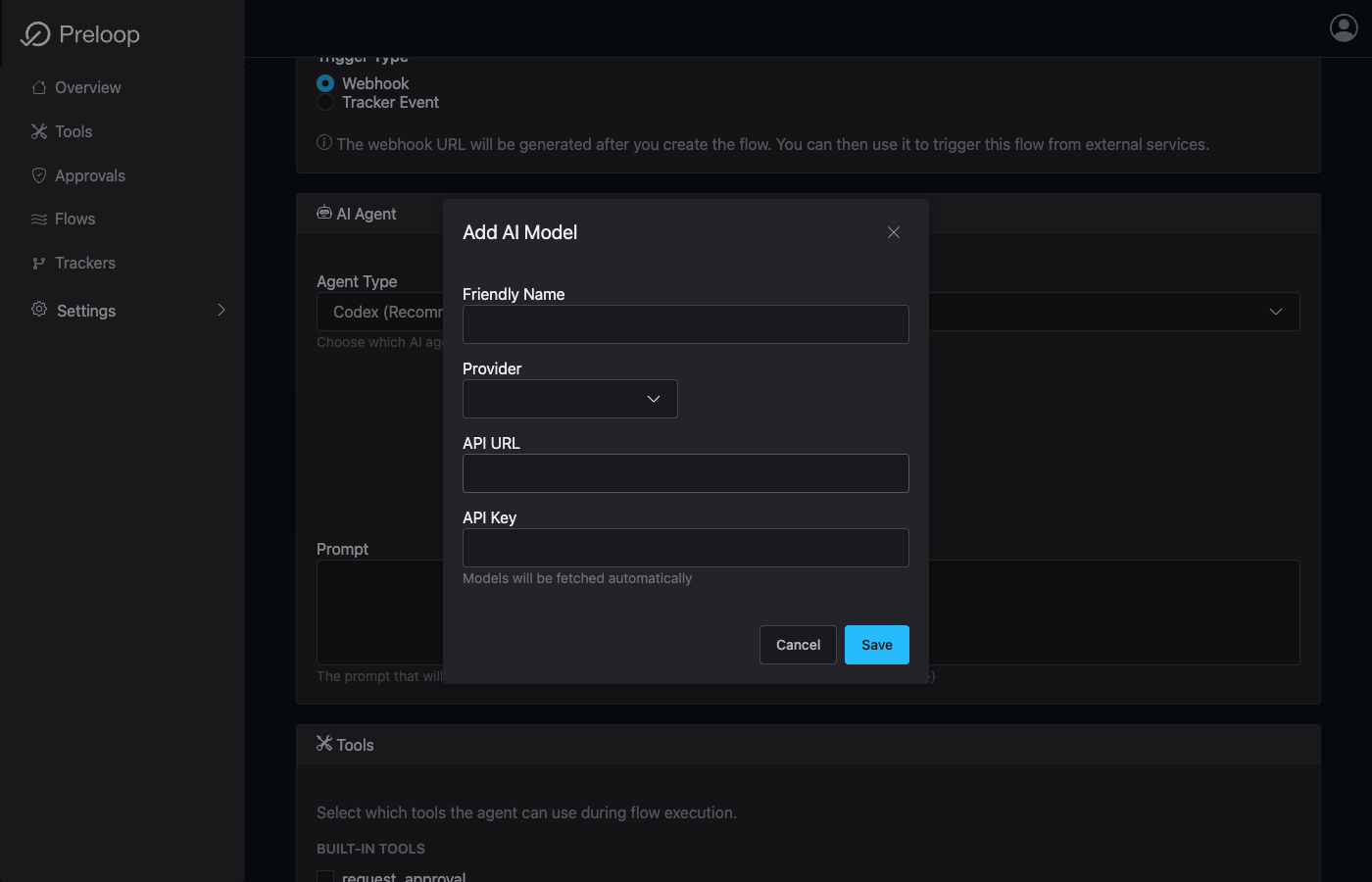 Adding and configuring a new AI model for your automated flows
Don't Have an OpenAI Key?
Get one at platform.openai.com/api-keys. The free tier is sufficient for testing.
✓ Checkpoint: You now have an AI model configured!
Step 2: Create a Payment Approval Flow (2 minutes)
Let's create a flow that processes contract payments. If the amount exceeds your threshold, it will require approval.
Flow Scenario:
When triggered (manually or via webhook), the flow will:
- Receive payment details (recipient, amount, contract_id)
- Use the prelooped
paytool to send payment - If amount exceeds the condition, require approval first
- Report the result
Create the Flow:
- You're already on the Create Flow page. Fill in:
Basic Info:
- Name:
Contract Payment Processor - Description:
Process contract payments with approval for large amounts
Trigger:
- Trigger Type: Select Webhook
- (The webhook URL will be generated after creation)
AI Agent:
- AI Model: Select the model you just created
-
Prompt: Enter this:
You are a payment processor. Process the payment with these details:

Recipient: {{trigger_event.payload.recipient}}
Amount: ${{trigger_event.payload.amount}}
Contract ID: {{trigger_event.payload.contract_id}}

Use the pay tool to send the payment. The tool is configured with
an approval workflow - small amounts are auto-approved, larger amounts
require human approval.

After payment completes, report the status. Do not retry if declined.
Tools:
- Ensure pay is checked
-
You can uncheck other tools if you want
-
Click Create at the bottom
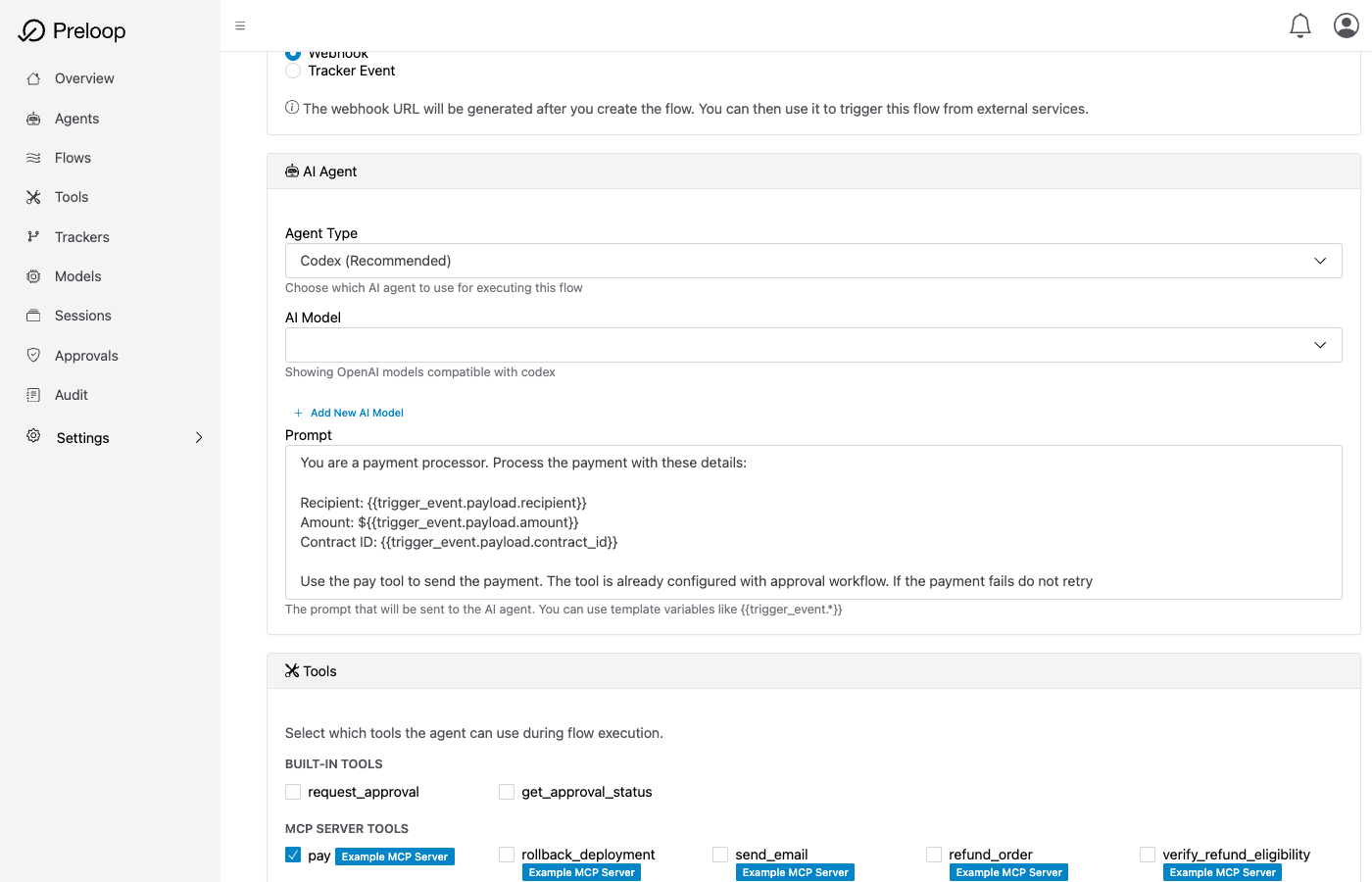 Creating an automated payment processor flow with AI model and approval-gated tools
✓ Checkpoint: Your flow is created!
Step 3: Test Your Flow (2 minutes)
Now let's trigger your flow and see the approval workflow in action!
Trigger the Flow:
- You should now be on the flow details page (flows you create start enabled)
- Click Test Run
- You'll see a dialog asking for test values for the template variables
-
Fill in:
- trigger_event.payload.recipient:
contractor@example.com - trigger_event.payload.amount:
1500(above threshold!) - trigger_event.payload.contract_id:
CONTRACT-2025-001
- trigger_event.payload.recipient:
-
Click Run Test
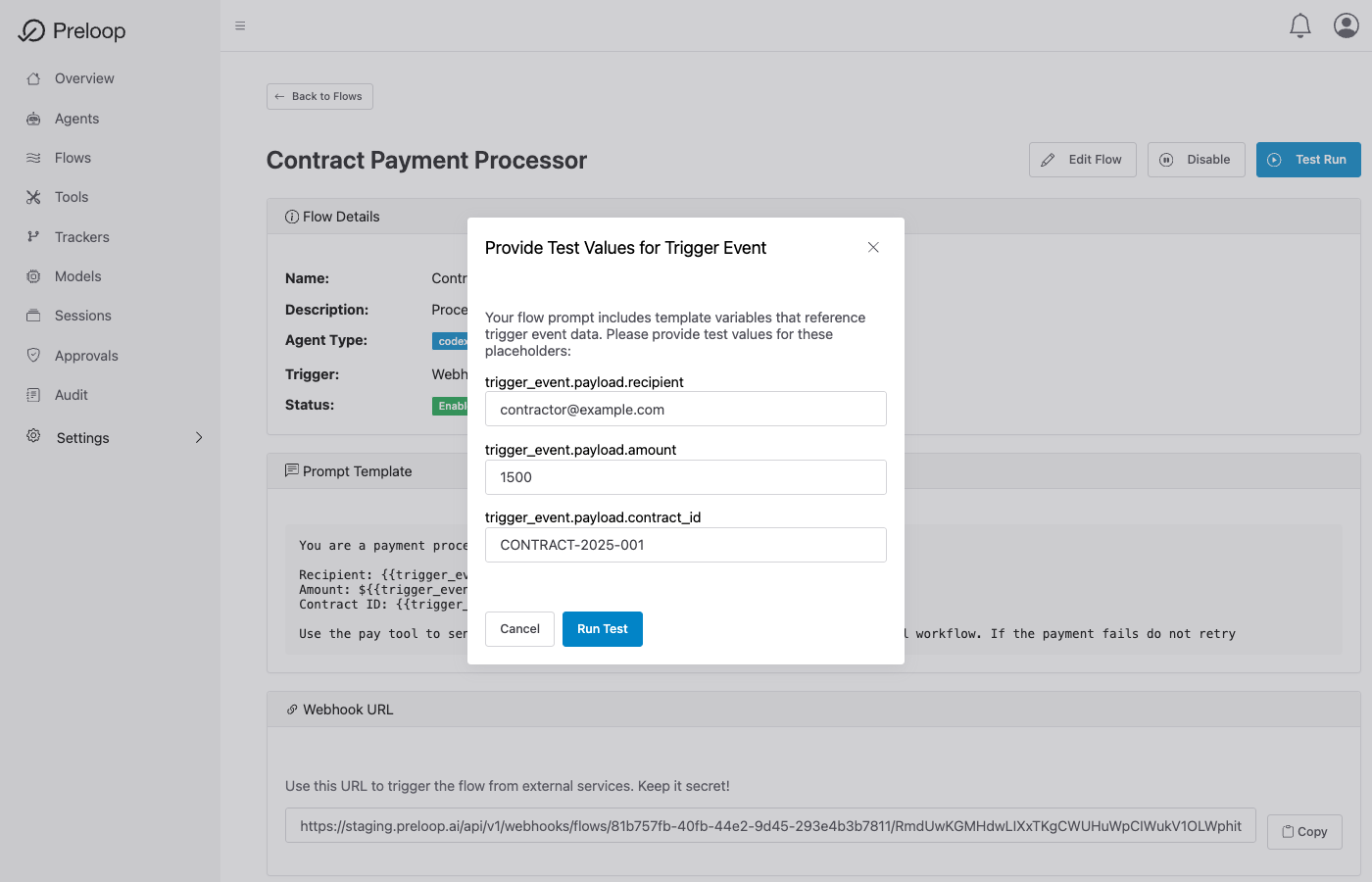 Testing the flow with sample payment data - triggering the approval workflow
Watch the Execution:
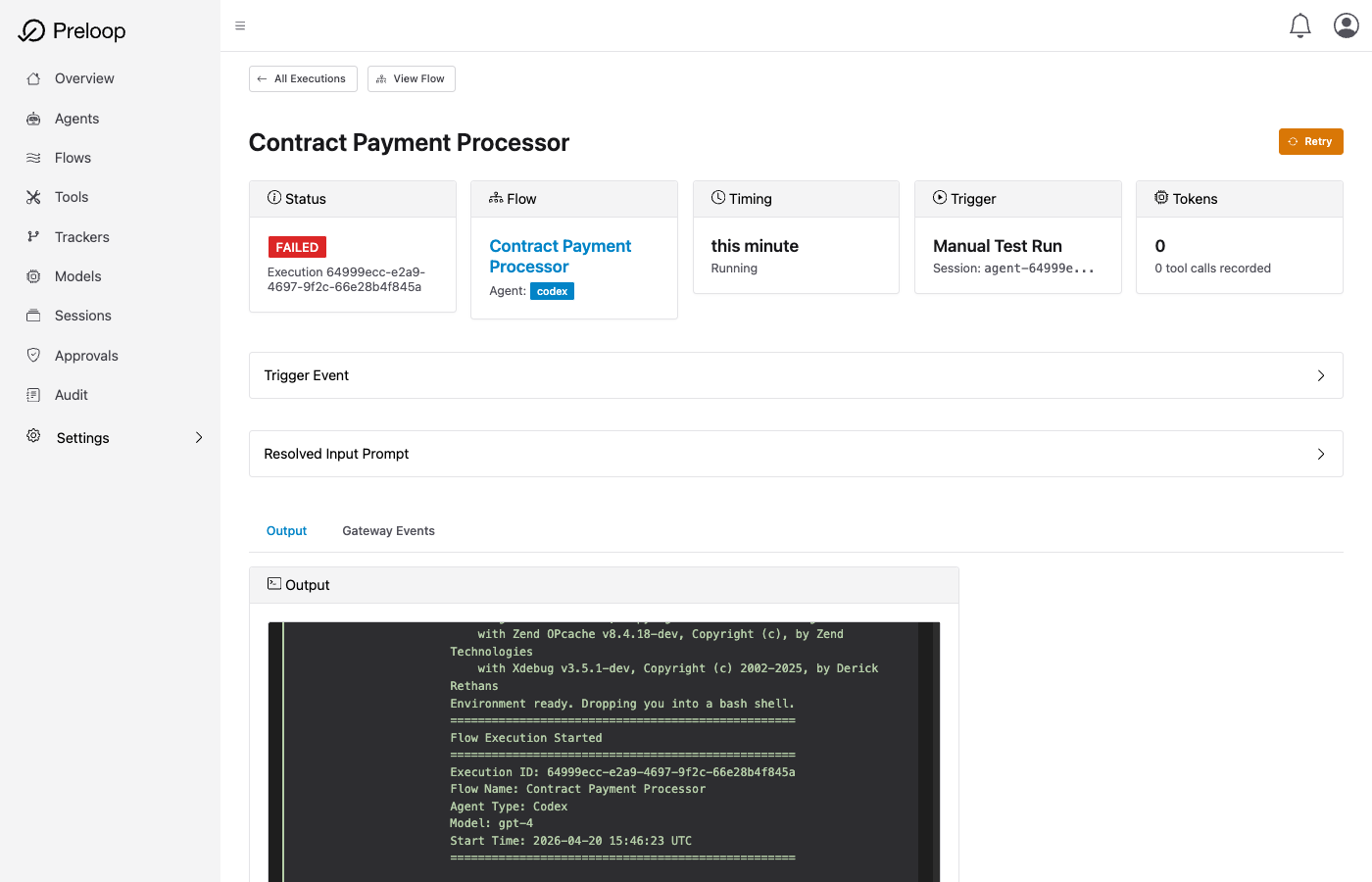
You'll be redirected to the execution page where you can see the AI agent working:
- The agent will read your prompt
- It will attempt to call the
paytool with amount=$1500 - Because you prelooped
payearlier, you'll get an approval request!
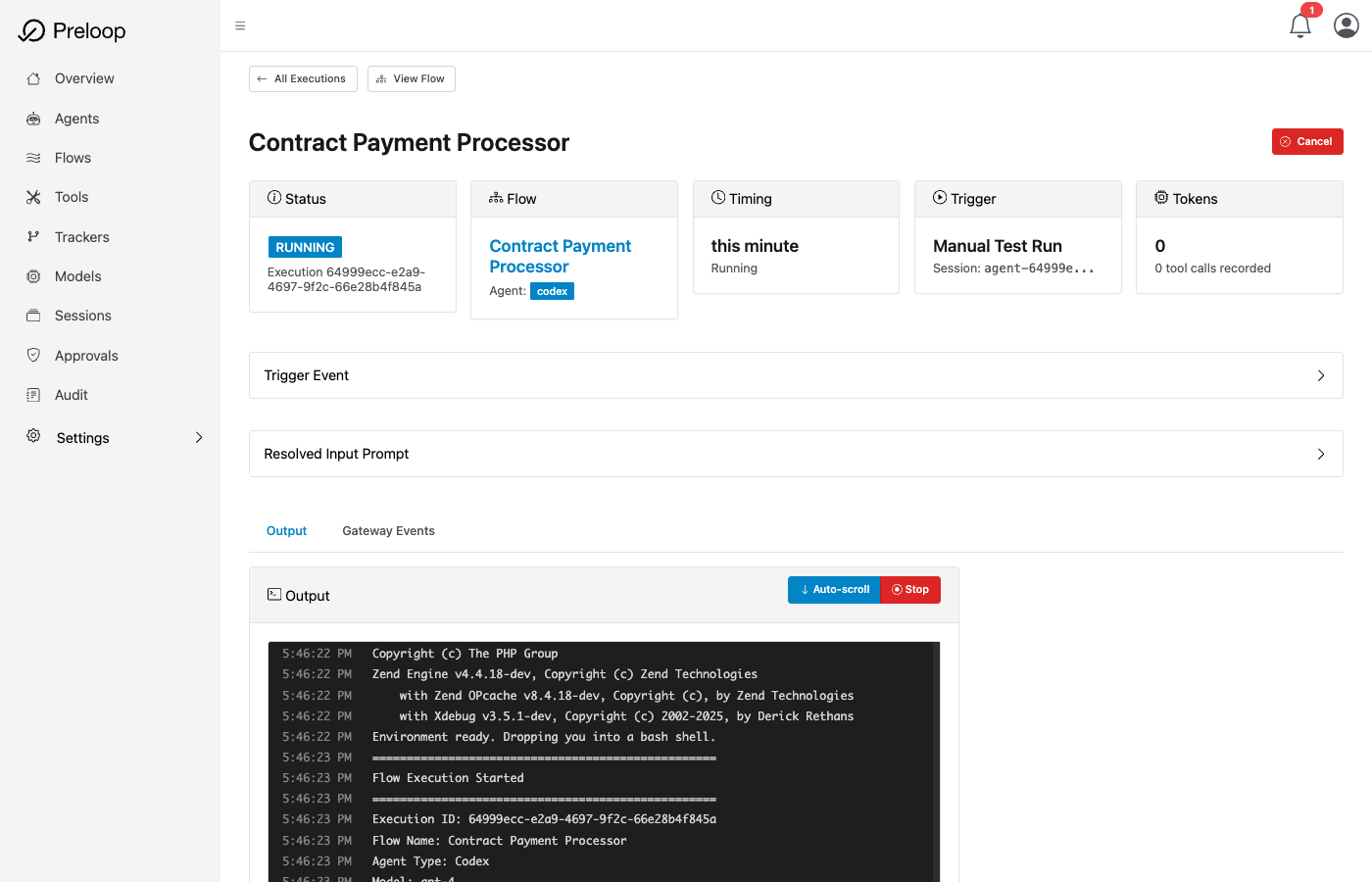 Flow execution in progress - AI agent is processing the request
 Flow paused waiting for human approval before executing the payment
Approve the Payment:
You'll receive an email: "Approval Required: pay"
- Click Approve in the email, or:
- Approve from the web dashboard
- Approve from the mobile app
- Go back to the flow execution page
- Watch the agent complete the payment after your approval!
✓ Checkpoint: You've successfully run an automated flow with human approval!
Triggering via Webhook
Your flow has a unique webhook URL. You can trigger it from external services!
- Go back to your flow details page
- Find the Webhook URL section
- Copy the URL (looks like:
https://preloop.ai/api/v1/webhooks/flows/{flow_id}/{webhook_secret})
Test with curl:
curl -X POST 'YOUR_WEBHOOK_URL' \
  -H 'Content-Type: application/json' \
  -d '{
    "recipient": "vendor@example.com",
    "amount": 500,
    "contract_id": "CONTRACT-2025-002"
  }'
This payment will execute WITHOUT approval because it's below the threshold!
Try with a larger amount:
curl -X POST 'YOUR_WEBHOOK_URL' \
  -H 'Content-Type: application/json' \
  -d '{
    "recipient": "vendor@example.com",
    "amount": 2000,
    "contract_id": "CONTRACT-2025-003"
  }'
This one WILL require approval.
Success! You've Built Safe Automation
You've just:
- Set up the Safety Layer - Protected a risky tool with policies (Part 1)
- Built an automated workflow - Created a flow with an AI agent
- Tested end-to-end - Triggered the flow, got approval request, watched it execute
- Learned webhook triggers - Can now trigger flows from external services
What's Next?
Learn the flow building blocks:
Go deeper on how flows are created, triggered, and executed:
- Creating Flows - Build reusable AI-driven workflows
- Flow Triggers - Understand webhooks and other trigger types
- Flow Execution - Inspect status, history, and outcomes
Creating Flows → | Flow Triggers → | Flow Execution →
Advanced Approval Workflows:
Make approval smarter with conditional logic:
- Approve only if
environment == "production" - Different approvers for different amounts
- Team-based approval with quorum (require 2 of 5 approvers)
- Escalation chains
Conditional Approval (CEL) → | Team-Based Approvals →
Connect Your Own MCP Servers:
Preloop tools from ANY MCP server:
- Deployment tools
- Database operations
- Cloud provider APIs
- Your custom MCP servers
Learn More
Core Concepts:
- MCP Integration - How Preloop protects MCP tools with policies
- Policy-as-Code - Generate and manage policies programmatically
Flows:
- Creating Flows - Complete guide
- Flow Triggers - All trigger types
- Flow Execution - Monitoring and debugging
Advanced:
- Team-Based Approvals - Approver groups, inherited roles, and quorum behavior
- Mobile Apps - Approve from iPhone, iPad, Apple Watch, or Android
- External MCP Tools - Protect tools from your own MCP servers