Quick Start: AI Agent Control in 5 Minutes
Welcome! This guide walks you through setting up Preloop end-to-end — from signup to testing layered access rules with Claude Code.
Already running an agent locally?
The fastest path is the one‑line CLI install. It detects your existing agents (Claude Code, Codex CLI, Gemini CLI, OpenClaw, OpenCode, …), creates an account if needed, and onboards them in under a minute. See Onboard local agents with the CLI before continuing here.
Watch the full demo
See the complete flow in action: Watch on YouTube
What You'll Accomplish
- Create your account with a 14-day free trial
- Connect an MCP server and scan its tools
- Create approval workflows and layered access rules
- Connect Claude Code and the mobile app
- Test three payment scenarios: auto-allow, deny, and async approval
Ready to build agentic workflows? Continue to Part 2: Agentic Flows
Step 1: Create Your Account
- Go to https://preloop.ai and click Sign Up
- Complete the Stripe checkout to start your 14-day free trial
- Enter your username and organization name
- Set your password on the welcome page
Step 2: Add an MCP Server
We host an example MCP server with a pay tool for testing.
- Navigate to Tools & MCP in the sidebar
- Click + Add Source → MCP Server
- Fill in:
- Name:
Example MCP Server - URL:
https://example-mcp.preloop.ai/mcp - Transport:
http-streaming - Auth Type:
none
- Name:
- Click Add, then Scan Tools
Step 3: Create Approval Workflows & Access Rules
Preloop lets you layer multiple rules on each tool. In this demo we create two approval workflows and four rules that together implement a tiered payment policy.
Create Approval Workflows
- Go to Approval Workflows and click Create Workflow
- Create a Support workflow — approvers: your support team, quorum: 1
- Create a CFO workflow — approvers: your CFO / finance team, quorum: 1
Configure Layered Access Rules
Back on the pay tool card, add four rules (evaluated top to bottom):
| Priority | Condition | Action | Workflow |
|---|---|---|---|
| 1 | amount <= 100 |
Allow | — |
| 2 | amount <= 200 |
Require Approval | Support |
| 3 | amount <= 1000 |
Require Approval | CFO |
| 4 | (default) | Deny | — |
Enable Require Justification so agents must explain why they need to call the tool.
What Just Happened?
You prelooped the pay tool! The Preloop logo badge now appears on the tool card, indicating that access rules are enforced before execution.
Step 4: Connect Claude Code
Create an API Key
- Click Setup Instructions on any tool card
- Click Create New API Key, name it, and copy the key
Save Your API Key
You won't see it again! Store it somewhere safe.
Configure Claude Code
Copy the claude mcp add command shown in the setup instructions and paste it in your terminal (replace YOUR_API_KEY):
claude mcp add \
  --transport http \
  --header "Authorization: Bearer YOUR_API_KEY" \
  preloop \
  https://preloop.ai/mcp/v1
One‑command alternative
You can skip the manual claude mcp add step entirely by running preloop agents discover (or curl -fsSL https://preloop.ai/install/cli | sh on a fresh machine). The CLI auto‑detects Claude Code (and Codex / Gemini / OpenClaw / OpenCode / …), wires the MCP server through Preloop with the correct token, and lets you confirm each change. See Onboard local agents with the CLI.
Install the Mobile App (Optional)
Download the Preloop mobile app on your iPhone, iPad, or Android device to approve requests on the go.
Step 5: Test the Approval Flow
With the layered rules in place, try three payment scenarios:
Scenario A: Auto-Allow ($50 payment)
$ claude -p 'Pay $50 to Marvin for lunch' --allowedTools mcp__preloop__pay
The payment of $50 to Marvin has been completed successfully.
The payment is under $100, so it's automatically allowed — no approval needed.
Scenario B: Denied ($5,000 payment)
$ claude -p 'Pay $5000 to Marvin for a yacht' --allowedTools mcp__preloop__pay
The payment was denied. Amount $5000 exceeds the maximum allowed threshold.
The payment exceeds $1,000, hitting the deny rule. Claude receives the denial immediately.
Scenario C: Async Approval ($150 payment)
$ claude -p 'Pay $150 to Marvin for office supplies' --allowedTools mcp__preloop__pay
Waiting for approval...
The payment is between $100 and $200, triggering the Support approval workflow. Approve it from your phone or the web dashboard:
Review the Audit Trail
Every tool call — allowed, denied, or approved — is logged in the Audit Trail:
Step 6: Monitor Cost & Attribution
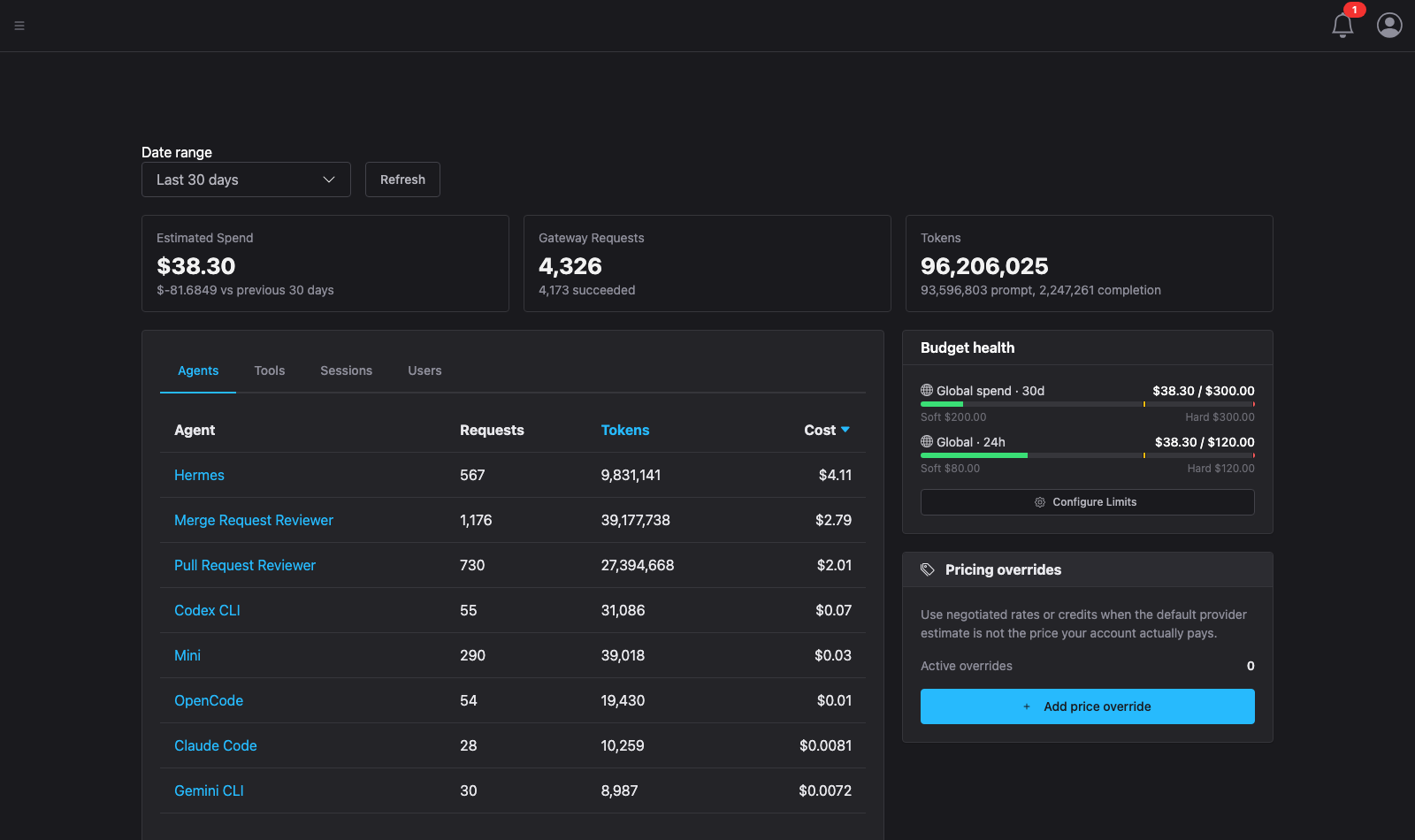
Preloop attributes every token and tool call to the specific agent or user.
- Navigate to Cost in the sidebar
- View the dashboard showing estimated spend, request counts, and token usage
- Drill down into per-agent or per-tool costs to identify high-spend patterns
Success!
You've just:
- Created your Preloop account and API key
- Connected an MCP server and scanned its tools
- Built layered access rules with two approval workflows
- Tested auto-allow, deny, and async approval scenarios
- Reviewed the full audit trail
What's Next?
-
Build Agentic Flows
Create event-driven workflows that use your protected tools with AI agents.
-
Mobile Apps
Approve requests from your iPhone, iPad, Apple Watch, or Android device.
-
Advanced Conditions
Write complex approval conditions using CEL expressions.
-
Team Approvals
Configure quorum, escalation, and team-based approval workflows.